
		    Microsoft(R) Macro Assembler Package
			      Version 5.10
		   Copyright 1988, Microsoft Corporation

Text files on the Macro	Assembler disks	are tabbed to save
disk space. If your printer does not automatically handle
tabs during printing, you must use a print program that
expands	tabs. For example, use the DOS PRINT program to	print
this and other document	or source files	on the disk.


		The Microsoft Macro Assembler (MASM)

Mixed-Language Support for Variables and Procedures
---------------------------------------------------
All EXTRN, PUBLIC, and PROC items, as well as uses of the .MODEL
directive, support a language type.  The language type of EXTRN
and PUBLIC variables determine whether or not an underscore is
prefixed to the name (an underscore is prefixed only for variables
with a C language type), and the language type of a procedure determines
its calling and naming conventions.  For an explanation of calling
and naming conventions, see the Microsoft Mixed-Language Programming
Guide.

The language type consists of the word "C" or "Pascal" and uses the
following syntax (lowercase items are placeholders, and bracketed items
are optional):

EXTRN [<langtype>] <varname>:<type>
PUBLIC [<langtype>] <varname>
procName PROC [NEAR|FAR] [<langtype>] [USES <regs>,] <args>

For example, the C and Pascal keywords are used correctly in the
following example:

	.MODEL	SMALL,C
	EXTRN	Pascal DosOpen:FAR
	PUBLIC	C myVar
myOpen	PROC	Pascal fName:PTR, mode:WORD
.
.
.
myOpen	ENDP


EVEN and ALIGN Directives
-------------------------
Padding for EVEN and ALIGN is now optimized.  Data segments
are padded with zeros.	Code segments are padded with special
two-byte NOP instructions where possible.  The two-byte NOP
consists of the instruction XCHG BX,BX (87 DB hexadecimal)
which is executed faster than two one-byte NOP instructions.

/B Option Ignored
-----------------
The /B option is now ignored, because its effect is irrelevant,
given the new file buffering mechanism.  However, the option is
still accepted for the purposes of compatibility.

The PTR Operator
----------------
The PTR	operator can be	used to	specify	the size of a
register indirect operand for a	CALL or	JMP instruction.
However, the size cannot be specified with NEAR	or FAR.	Use
WORD or	DWORD instead. (In 80386 32-bit	segments, use DWORD
or FWORD.) Examples are	shown below:

	  ; 8086, 80826, or 80386 16-bit mode

	  jmp  WORD PTR	[bx]	    ; Legal near jump
	  call NEAR PTR	[bx]	    ; Illegal near call
	  call DWORD PTR [bx]	    ; Legal far	call
	  jmp  FAR PTR [bx]	    ; Illegal far jump

	  ; 80386 32-bit mode only

	  jmp  DWORD PTR [bx]	    ; Legal near jump
	  call NEAR PTR	[bx]	    ; Illegal near call
	  call FWORD PTR [bx]	    ; Legal far	call
	  jmp  FAR PTR [bx]	    ; Illegal far jump

This limitation	only applies to	register indirect operands.
NEAR or	FAR can	be applied to operands associated with
labels.	Examples are shown below:

	  jmp  NEAR PTR	pointer[bx] ; Legal
	  call FAR PTR location	    ; Legal

Assembler Behavior Change
-------------------------
Some errors and	questionable practices that were ignored by
earlier	versions are now flagged as errors. As a result,
existing source	code may produce errors	or warnings.
The following are examples:

	  - Labels defined only during pass 1 cause errors if
	    used in expressions.
	  - A CS ASSUME that changes from pass 1 to pass 2 causes
	    an error.
	  - Constants are now checked for type overflow.
	  - Reserved words used	as labels produce warnings.
	  - The	OFFSET operator	used with a constant causes an error.

The STACK Combine Type
----------------------
The description of the STACK combine type in Section 5.2.2.3
does not explain how multiple initialized stack	segments are
combined. The total size of the	stack is the total size	of
all stack definitions. LINK puts initialized data for each
defined	stack segment at the end of the	stack. Data initialized
in the last segment linked override data initialized in
previous segments. This behavior is usually not relevant, since
most programs only define one stack of uninitialized data.
Stack data cannot be initialized with simplified segment
directives.

Clarification of Parsing Error
------------------------------
The following error can be difficult to interpret because of the
way the assembler parses (analyzes) source code:

A2015: Symbol already different kind: <name>

Typically, the assembler generates this error message when a
symbol is used in a way inconsistent with how it was declared: for
example, a symbol is declared as an external absolute but then used
as a local code label.  However, the assembler also generates this
error when a symbol in the second source-code field can be interpreted
as either an operation or an operand.  The following example illustrates
this problem:

SYM1	MACRO	structName, varName
varName	structName	<>
	ENDM

SYM2	STRUCT
field1	DB
field2	DW
SYM2	ENDS


SYM1	SYM2, <mylabel>

The last line of code causes error A2015 to be generated.  The
assembler first looks at the second field of the line, which
contains the symbol SYM2.  Since SYM2 is a structure, the assembler
considers SYM2 to be an operation rather than an operand, and therefore
it considers SYM1 to be a label (rather than an operation). The way
to avoid this error is simply code the instruction as:

SYM1	<SYM2>, <mylabel>


HIGH and LOW Operators
----------------------
The HIGH and LOW operators work reliably only with constants
and with offsets to external symbols.  HIGH and LOW operations are
not supported for offsets to local symbols.

Mixed-Mode Programming (386 Only)
---------------------------------
When assembling code for .386 mode, the assembler now supports direct-
addressing modes between segments with different USE sizes.  (Segments can
have the USE16 or USE32 attribute; these attributes refer to the default
size of offsets.)  Direct-addressing references to labels in other segments
are correctly resolved.  In the following example, the assembler correctly
uses a 32-bit offset to access the data at label a32:

.386
SEG32	SEGMENT	USE32
a32	DD	?
SEG32	ENDS

SEG16	SEGMENT	USE16
	assume ds:seg32
	mov	eax,a32
SEG16	ENDS

You can also execute a CALL or a JMP to a label in a segment with a
different USE size.  However, the label must be declared FAR, and the
CALL or JMP must not be a forward reference.  The following example
shows the correct method for executing such a CALL or JMP:

.386
COD16	SEGMENT	USE16	'CODE'
proc16	PROC	FAR
	ret
proc16	ENDP

lab16	LABEL	FAR
COD16	ENDS

COD32	SEGMENT	USE32	'CODE'
	call	proc16
	jmp	lab16
COD32	ENDS

Additional Error Messages
-------------------------

19	Wrong type of register

The register specified in the operand field was incompatible with the
directive or instruction in the operation field.  For example, the following
instruction causes this error because you cannot increment the
code segment:

	inc cs


36	Extra NOP inserted

During pass 1 the assembler did not have enough information to
correctly infer the length of the encoding for the instruction.
During pass 2 the encoding was found to be shorter than the space
allocated from pass 1, so one or more NOP instructions were inserted
as padding.  It may be possible to generate a smaller amount of code
by eliminating a forward reference to a symbol.


	   The Microsoft Cross-Reference Utility (CREF)

New Feature
-----------
Cross-reference	listing	files created with CREF	now have an
additional symbol. A line number followed by + indicates
that a symbol is modified at the given line. For example:

	  TST .	. . . .	. . . .	. . . .	.  134#	  237	 544+

The symbol TST is defined at line 134, used at line 237, and
modified at line 544.


                          The Mouse Driver

If you use the Microsoft Mouse with the Microsoft CodeView(R) debugger
you must have Version 6.0 or later of the Microsoft Mouse. If you do not, use
the version of the MOUSE.COM driver provided in this package.  Copy MOUSE.COM
to the appropriate mouse directory. When you are ready to use the mouse, type

	mouse

at the DOS command level. If you want to install the mouse driver automatically
every time you reboot,  insert the "mouse" command in your AUTOEXEC.BAT file.

Note that in earlier releases of Microsoft C, both the MOUSE.SYS and the
MOUSE.COM driver were provided.  If you have been using an earlier version
of the MOUSE.SYS driver, delete the following line from your CONFIG.SYS file:

	device=<directory>mouse.sys

where <directory> is the directory where the earlier mouse driver resides.


    		      Microsoft CodeView Debugger

New Command-Line Option
-----------------------
If you have an IBM Personal System/2, then you can use the /50
command-line option to start the CodeView debugger in 50-line mode.
Note that you must be in 25-line mode to effectively use either the
/43 or /50 command-line option.

CONFIG.SYS Setting for CVP
--------------------------
To run the protected-mode CodeView debugger (CVP.EXE), you must have
the following line in your CONFIG.SYS file:

	IOPL=YES


Using the 7 Command in Protected Mode
-------------------------------------
If you are using OS/2 protected mode and have a math coprocessor, then
you need to use a patch before you can use the CVP 7 command.  To apply
the patch, use the OS2PATCH.EXE and PTRACE87.PAT files that come on the
same disk that CVP.EXE comes on.  You also need to locate the PATCH.EXE file
that comes with OS/2 and make sure that this file is in a directory listed
in your PATH environment variable.  Then follow these steps:

1) Change the current drive and directory to the root directory of the
   boot disk.  (If the boot disk is a floppy, make sure it is inserted
   in the drive you used to boot from.)

2) Give the following command line at the DOS prompt:

   OS2PATCH /A PTRACE87.PAT

Note that you may need to give the complete path names for the
OS2PATCH.EXE and for the PTRACE87.PAT file.  You do not need to give
a path name for the OS2PATCH.EXE file if you have placed this file
in a directory listed in your PATH environment variable.

Using the Real-Mode Debugger in the Compatibility Box
-----------------------------------------------------
When running the real-mode CodeView debugger in the DOS 3.x
compatibility box, start the debugger with the /S command-line
option.  Otherwise, the mouse pointer will not appear.

Using the CodeView Debugger with BIND
-------------------------------------
The real-mode CodeView debugger cannot debug bound (dual-mode)
applications.  However, the protected-mode CodeView debugger,
CVP, can debug bound applications.

Expression Evaluator for BASIC Programs
---------------------------------------
In the BASIC expression evaluator, "+" is not supported for string
concatenation.

Stack Trace Command
-------------------
In order for the Stack Trace command (or the Calls menu) to work
reliably, you need to execute to at least the beginning of the main
function or procedure, and the current module should have full CodeView
information (a module has full CodeView information if compiled or
assembled with /Zi).

Error Messages
--------------
The error message "? cannot display" indicates that the Display
Expression command (?) has been passed a valid symbol that it
cannot display. In previous versions of the debugger, structures
could not be displayed. With current version of the debugger, only
the enums type cannot be displayed.

The error message "Expression not a memory address" occurs when
the Tracepoint command is given without a symbol that evaluates to
a single memory address.  For example, the commands "TP?1" and
"TP?a+b" each produce this error message.  The proper way to put a
tracepoint on the word at address 1 is with the command "TPW 1".

The error message "Function call before 'main'" occurs when you
attempt to evaluate a program-defined function before you have entered
the main function.  Execute to at least to the beginning of the main
function before attempting to evaluate program-defined functions.

The error message "Bad emulator info" occurs when CodeView cannot
read data from the floating-point emulator.

The error message "Floating point not loaded" has a special meaning
for CVP (in addition to the explanation given in the CodeView and
Utilities manual).  Each thread has its own floating-point emulator.
This message is issued when the current thread has not initialized
its own emulator.

Microsoft Pascal Programs
-------------------------
In this release, Microsoft Pascal programs cannot be debugged with
the CodeView debugger.


			     Exit Codes for Utilities

The exit codes for LINK and the utilities in the Microsoft CodeView
and Utilities manual should appear as follows:

LINK
----
	Code	Meaning

	0	No error.

	2	Program error--something was wrong with the commands
		or files input to the linker.

	4	System error.  The linker

		- ran out of space on output files
		- was unable to reopen the temporary file
		- experienced an internal error
		- was interrupted by the user

LIB, EXEPACK, EXEMOD, MAKE, and SETENV
---------------------------------------
	Code	Meaning

	0	No error.

	2	Program error--something was wrong with the commands
		or files input to the utility.

	4	System error.  The utility ran out of memory, was
		interrupted by the user, or experienced an internal
		error.

		    Microsoft Overlay Linker (LINK)

Overlay Restrictions
--------------------
You cannot use long jumps (using the longjmp library function) or indirect
calls (through a function pointer) to pass control to an overlay.  When a
function is called through a pointer, the called function must be in the same
overlay or in the root.

Changed LINK Error Messages
---------------------------
The explanation for fatal-error message L1008 is changed as follows:

	The /SEGMENTS option specified a limit greater than 3072 on the
	number of segments allowed.

Error message L1009 has been changed to read as follows:

	L1009	<number> : CPARMAXALLOC : illegal value

Error message L1053 has been changed to read as follows:

	L1053   out of memory for symbol table

	The program had more symbolic information (such as public, external,
	segment, group, class, and file names) than the amount that could fit
	in available real memory.

	Try freeing memory by linking from the DOS command level instead of
	from a MAKE file or from an editor. Otherwise, combine modules or
	segments and try to eliminate as many public symbols as possible.

Warning message L4050 has been changed as follows:

	L4050	too many public symbols for sorting

	The linker uses the stack and all available memory in the
	near heap to sort public symbols for the /MAP option.  If
	the number of public symbols exceeds the space available
	for them, this warning is issued, and the symbols are not
	sorted in the map file but are listed in arbitrary order.

New LINK Error Messages
-----------------------
L1003	/QUICKLIB, /EXEPACK incompatible

You cannot link with both the /QU option and the /E option.

L1006   <option-text>: stack size exceeds 65535 bytes

The value given as a parameter to the /STACKSIZE option exceeds the
maximum allowed.

L1063	out of memory for CodeView information

The linker was given too many object files with debug information,
and the linker ran out of space to store it.  Reduce the number
of object files that have debug information.

L1115   /QUICKLIB, overlays incompatible

You specified overlays and used the /QUICKLIB option.
These cannot be used together.

L2013	LIDATA record too large

An LIDATA record contained more than 512 bytes.  This is
probably a compiler error.

L2024   <name>: special symbol already defined

Your program defined a symbol name that is already used by the linker
for one of its own low-level symbols.  (For example, the linker
generates special symbols used in overlay support and other operations.)
Choose another name for the symbol in order to avoid conflict.

L2025   <segmentname>: segment with > 1 class name not allowed with /INC

Your program defined a segment more than once, giving the segment
different class names.  Different class names for the same segment
are not allowed when you link with the /INCREMENTAL option.  Normally,
this error should never appear unless you are programming with MASM.
For example, if you give the two MASM statements

_BSS segment 'BSS'

and

_BSS segment 'DATA'

then the statements have the effect of declaring two distinct segments.
ILINK does not support this situation, so it is disallowed when the
/INCREMENTAL option is used.


L2041	stack plus data exceed 64K

The total of near data and requested stack size exceeds 64K,
and the program will not run correctly.  Reduce the stack size.
The linker only checks for this condition if /DOSSEG
is enabled, which is done automatically in the library
startup module.

L2043	Quick Library support module missing

When creating a Quick library, you did not link with the required
QUICKLIB.OBJ module.

L2044	<name> : symbol	multiply defined, use /NOE

The linker found what it interprets as a public-symbol
redefinition, probably because you have redefined a symbol that
is defined in a library.  Relink with the /NOEXTDICTIONARY
(/NOE) option. If error L2025 results for the same symbol, then you
have a genuine symbol-redefinition error.

L4003	intersegment self-relative fixup at <offset> in segment <name>
	pos: <offset> Record type: 9C target external '<name>'

The linker found an intersegment self-relative fixup. This error
may be caused by compiling a small-model program with the /NT
option.

L4034	more than 239 overlay segments; extra put in root

Your program designated more than the limit of 239 segments to
go in overlays.  Starting with the 234th segment, they are assigned to
the root (that is, the permanently resident portion of the program).


		Microsoft Library Manager (LIB)

New Option
----------
There is a new option for LIB:  /NOIGNORECASE (abbreviated as /N).
This option tells LIB to not ignore case when comparing symbols.
names. By default, LIB ignores case.  Multiple symbols that are
the same except for case can be put in the same library.  An
example of this is: "_Open" and "_open". Normally you could not
add both these symbols to the same library.

Note that if a library is built with /NOI, the library is
internally "marked" to indicate /NOI.	All libraries built
with earlier versions of LIB are not marked.

If you combine multiple libraries, and any one of them is
marked /NOI, then /NOI is assumed for the output library.

In addition, LIB also supports the option /IGNORECASE (/I), which
is completely analogous to /NOIGNORECASE.  /I is the default. The only
reason to use it would be if you have an existing library marked /NOI
that you wanted to combine with other libraries which were not marked,
and have the output library be not marked. If you don't use
/IGNORECASE, the output is marked /NOI (see above).

Changed LIB Error Messages
--------------------------
Warning	messages U4152,	U4155, and U4157-U4159 for LIB are now
nonfatal error messages	U2152, U2155, and U2157-U2159, respectively.

Warning message U4151 has been changed to read as follows:

	U4151	'<name>' : symbol defined in module <name>, redefinition ignored

New LIB Error Messages
----------------------
The following new warning messages have	been added for LIB:

U4155	<modulename> : module not in library

A module specified to be replaced does not already exist in the
library.  LIB adds the module anyway.

U4157	insufficient memory, extended dictionary not created
U4158	internal error,	extended dictionary not	created

For the	reason indicated, LIB could not	create an extended
dictionary. The	library	is still valid,	but the	linker
is not able to take advantage of the extended dictionary
to speed linking.


		Microsoft Program Maintenance Utility (MAKE)

New Error Message
-----------------
U1015: <file> : error redirection failed

This error occurs if the /X option is given and error output cannot
be redirected to the given file (for example, because the file
is read-only).

Inference Rules
---------------
You cannot have inference rules in both the TOOLS.INI and the description
file that use both the same inextension and outextension.  For example, you
cannot place the following inference rule in the TOOLS.INI file:

	.c.obj:
		cl /c /Zi /Od $*.c

while also placing the following line in the description file:

	.c.obj:
		cl /Ot $*.c

However, you can define the same macro in both the TOOLS.INI and the
description file.  In such cases, the definition in the description file
takes precedence.

Backslash () as Continuation Character
---------------------------------------
Note that MAKE considers a backslash immediately followed by a new-line
character to be a continuation character.  When it finds this combination
in a description file, MAKE concatenates the line immediately following
the combination with the line where the combination appears.

If you define a macro that ends in a backslash, make sure that you put a
space after the terminating backslash.  For example, if you want to define
macros for the path C:SRCBIN and C:SRCLIB, you must use the format
illustrated below:

	BINPATH=C:SRCBIN<space><newline>
	LIBPATH=C:SRCLIB<space><newline>

To illustrate the problems that can result if you do not put a space before the
new-line character, assume that the macros above appear as shown below
instead:

	BINPATH=C:SRCBIN<newline>
	LIBPATH=C:SRCLIB<newline>

Because a new-line character appears immediately after the backslash at the end
of the first macro, MAKE assumes that you are defining the single macro shown
below:

	BINPATH=C:SRCBINLIBPATH=C:SRCLIB


	    Microsoft STDERR Redirection Utility (ERROUT)

The ERROUT utility does not accept batch files. To redirect standard-error
output from a batch file, you must enter a command of the following form:

	ERROUT COMMAND /c <batchcommand>

If no /f option is given, then ERROUT redirects standard-error output to
the standard-output device.


			Mixed-Language Programming

Setting Up Calls to High-Level Languages
----------------------------------------
Section 6.6 of the Microsoft Mixed-Language Programming Guide gives in-
structions for setting up a call to a high-level language from assembly
language.  Before you execute a call to a BASIC, Pascal, or FORTRAN routine,
remember to declare an additional parameter if the return value is noninteger.
This additional parameter must contain the offset address of the return value,
for which you must allocate room within the stack segment (normally DGROUP,
the same as the default data segment).


                       The BIND Utility

Specifying Libraries
--------------------
You need to include DOSCALLS.LIB on the BIND command line. If
DOSCALLS.LIB is not in the current directory, you must give the
complete path name to DOSCALLS.LIB.

BIND automatically searches for API.LIB by looking in directories
listed in the LIB environment variable.  However, if API.LIB is
specified on the command line, then BIND will not check the LIB
environment variable; instead, you will need to give the complete
path name.

For example, the following command line successfully uses BIND, if
API.LIB is located in a directory listed in the LIB environment
variable:

BIND FOO.EXE LIBDOSCALLS.LIB

Using BIND with Packed Files
----------------------------
The version of BIND released with this package does not work with
files that have been linked with the /EXEPACK linker option.

Running Bound Files with DOS 2.1
--------------------------------
A dual-mode executable file produced with BIND can be run in both
DOS 3.x and DOS 2.x environments.  However, if you change the name
of an executable file produced by BIND, then it will not run under
DOS 2.1.


                 The Microsoft Incremental Linker (ILINK)

ILINK Fatal Error Messages
--------------------------

.sym seek error
.sym read error

	The .SYM file is corrupted.  Do a full link.  If the error
	persists, contact Microsoft.

.sym write error

	The disk is full or the .SYM file already exists with the
	READONLY attribute.

map for segment <name> exceeds 64K

	The symbolic information associated with the given segment
	exceeds 64K bytes, which is more than ILINK can handle.

can't ilink library <name>

        You tried to incrementally link an altered library.
	ILINK does not link .LIB files but only .OBJ files.
	Use a full link instead.

.obj close error

	The operating system returned an error when ILINK attempted
	to close one of the .OBJ files.  Do a full link.  If the error
	persists, contact Microsoft.

too many LNAMES in <modname>

	An object module has more than 255 LNAME records.

too many SEGDEFs in <modname>

	The given object module has more than 100 SEGDEF records.

too many GRPDEFs in <modname>

	The given object module has more than 10 GRPDEF records.

symbol <name> multiply defined

	The given symbol is defined more than once.

#3

	Please report this error to Microsoft.

Out of Memory

	ILINK ran out of memory for processing the input.  If you
	are running ILINK under MAKE, try running it from the shell.
	Otherwise, do a full link.

could not run exec

	ILINK was unable to find the file EXEC.EXE, which should be
	placed somewhere in the search path or in the current
	directory.

.exe file too big, change alignment

	The segment sector alignment value in the .EXE file is too
	small to express the size of one of the segments.  Do a full
	link and increase the alignment value with the /ALIGNMENT
	option to LINK.

.ilk seek error

	The .ILK file is corrupted.  Do a full link.  If the error
	persists, contact Microsoft.

Too many defined segments

	ILINK has a limit of 255 defined segments, which are segments
	defined in an object module as opposed to an executable segment.
	Reduce the number of segments if you want to use ILINK.

too many library files

	ILINK has a limit of 32 runtime libraries (.LIB files).  Reduce
	the number of libraries.

too many modules

	ILINK has a limit of 1204 modules in a program.  Reduce the
	number of modules.

.ilk write error

	The disk is full, or else ILINK cannot write to the .SYM file
	because a .SYM file currently exists and has the READONLY attribute.

file <name> does not exist

	ILINK was unable to open the given file.  The file named was
	in the file list in the .ILK file.

seek error on library

	A .LIB file was corrupted.  Do a full link and check your .LIB
	files.

library close error

	The operating system returned an error when ILINK attempted
	to close one of the .LIB files.  Do a full link.  If the error
	persists, contact Microsoft.

error closing EXE file

	The operating system returned an error when ILINK attempted
	to close the .EXE file.  Do a full link.  If the error
	persists, contact Microsoft.

Invalid module reference <module>

	The program makes a dynamic link reference to a dynamic link
	module which is not represented in the .EXE file.

could not update time on <filename>

	The operating system returned an error when ILINK attempted
	to update the time on the given file.  Possibly the file had
	the READONLY attribute set.

invalid flag <flag>
only one -e command allowed

	The ILINK command syntax is incorrect.

User Abort

	The user issued CTRL+C or CTRL+BREAK.

file <name> write protected

	The .EXE, .ILK, or .SYM file needed to be updated and has the
	READONLY attribute.  Change attribute to READWRITE.

file <name> missing

	One of the .OBJ files specified on the command line is missing.

file <name> invalid .OBJ format
file <name> has invalid <recordtype> record

	The given .OBJ file has an invalid format or one that is not
	recognized by ILINK.  This may have been caused by a compiler
	or assembler.

file <module> was not full linked

	An .OBJ file was specified as input to ILINK, which was not in
	the list of files in the original full link.

LOBYTE seg-relative fixups not supported

	This error message should occur only with MASM files.  See the
	Microsoft Macro Assembler 5.0 Programmer's Guide. This type of
	object module is not supported by ILINK.

<number> undefined symbols

	The given number of symbols were referred to in fixups but
	never publicly defined in the program.

Incremental Violations
----------------------
These errors cause a full link to occur if the -e option is used and -i
is not used, else they are fatal errors:

symbol <name> deleted

	A symbol was deleted from an incrementally-linked module.

<modname> contains new SEGMENT

	A segment was added to the program.

<modname> contains changed segment <name>

	The segment contribution (code or data which the module
	contributes to a segment) changed for the given module:	it
	contributed to a segment it didn't previously contribute to,
	or a contribution was removed.

<modname>'s segment <name> grew too big

	The given segment grew beyond the padding for the given module.

<modname> contains new GROUP <name>

	A new group was defined, via the GROUP directive in assembly
	language or via the /ND C compiler option.

<modname> redefines group <name> to include <name>

	The members of the given group changed.

symbol <name> changed

	The given data symbol was moved.

can't add new communal data symbol <name>

	A new communal data symbol was added as an uninitialized variable
	in C or with the COMM feature in MASM.

communal variable <name> grew too big

	The given communal variable changed size too much.

invalid symbol type for <name>

	A symbol which was previously code became data, or vice versa.

too many COMDEFS
too many EXTDEFS

	The limit on the total of COMDEF records (communal data variables)
	and EXTDEF records (external references) is 2000.

invalid CodeView information in .EXE file

	The CodeView information found is invalid.

<name> contains new Codeview symbolic info

	A module previously compiled without -Zi was compiled with -Zi.

<name> contains new linnum info

	A module previously compiled without -Zi or -Zd was compiled
	with -Zi or -Zd.

<name> contains new public CV info

	New information on public-symbol addresses was added.

invalid .exe file

	The .EXE file is invalid.  Make sure you are using an up-to-date
	linker.  If the error persists, contact Microsoft.

invalid .ilk file
.ilk read error
.ilk seek error

	The .ILK file is invalid.  Make sure you are using an up-to-date
	linker.  If the error persists, contact Microsoft.

.SYM/.ILK mismatch

	The .SYM and .ILK files are out of sync.  Make sure you are using
	an up-to-date linker.  If the error persists, contact Microsoft.

<libname> has changed

	The given library has changed.

can't link 64K-length segments

	ILINK cannot handle segments greater than 65,535 bytes long.

can't link iterated segments

	ILINK cannot handle programs linked with /EXEPACK.

Entry table expansion not implemented

	The program call tree changed in such a way that ILINK could
	not handle it.

file <name> does not exist

	The .EXE, .SYM, or .ILK files are missing.

<name> has changed

	The given library module name has changed.

ILINK Warning messages
----------------------

Fixup frame relative to an (as yet) undefined symbol - assuming ok

	See documentation for LINK error messages L4001 and L4002,
	in the Microsoft CodeView and Utilities manual.

<name> contains TYPEDEFs - ignored
<name> contains BLKDEFs - ignored

	The .OBJ file contains records no longer supported by Microsoft
	language compilers.

old .EXE free information lost

	The free list in the .EXE file has been corrupted.  The free
	list keeps track of "holes" of free space in the EXE file.  These
	holes are made available when segments are moved to new locations.

file <name> has no useful contribution

	The given module makes no contribution to any segment.

Main entry point moved

	The program starting address changed.  You may want to consider
	doing a full link.


                             Microsoft Editor

Installing the Editor
---------------------
The Microsoft Editor does not come with an MESETUP program. Instead,
run the setup program for the assembler. This program offers you choices
about how to set up the editor.

Keystroke Configurations
------------------------
Some of the keystroke configurations listed in Table A.2 of the
Microsoft Editor User's Guide may need to be changed.

In the Quick/WordStar configuration, the Sinsert function is assigned
to ALT+INS, not CTRL+INS.

In the BRIEF configuration, the Plines function is assigned to CTRL+Z,
and the Refresh function is assigned to CTRL+].

In the EPSILON configuration, the Ppage function is assigned to PGDN,
and the Sdelete function is assigned to DEL and CTRL+D.

The Compile Function
--------------------
The commands

	Arg streamarg Compile
        Arg textarg Compile

each use the command specified by the extmake:text switch.  The
editor does not check the extension of the file name given as an
argument, but instead uses the "text" extension.  The streamarg
or textarg replaces a %s in the command.  These commands are typically
used to invoke MAKE.

The Setfile Function
--------------------
The commands that use Setfile, along with a streamarg or textarg,
accept a variety of input: either the name of a file, a file name
with a wild-card character (* or ?), the name of a directory, or the
name of a disk drive.  File names can also include environment variables,
such as $INIT.  If the streamarg or textarg is a directory name, then
the editor changes the current directory.  If the argument is a drive
name, then the editor changes the current drive.  Environment variables
are translated into directories to be searched for a file.  For example,
the following macro directs the editor to search the $INIT environment
variable in order to find the tools.ini file:

    tools.ini := Arg "$INIT:tools.ini" Setfile
    tools.ini :ctrl+j

Entering Strings in Macros
--------------------------
When you enter a text argument directly, no characters have special
meaning (except when the argument is interpreted as a regular
expression).  However, when you enter text as part of a macro, then
strings inside of quotes are interpreted according to the C string
format.  This format uses a backslash followed by double quotes (")
to represent double quotes and it uses two backslashes (\) to represent
a single backslash.  Therefore, to find the next occurrence of the string

    She wrote, "Here is a backslash:  "

you could use the following macro definition:

    findit := Arg "She wrote, "Here is a backslash: \ "" Psearch

Note that to indicate a backslash for a regular expression that is
also part of a macro definition, you must use four consecutive
backslashes.


Using Text Switches
-------------------
The text switches extmake and readonly each take a special
kind of syntax that allows you to specify drive, file name,
base name, or file extension. The syntax consists of the
characters:

%|<letters>F

where <letters> consists of any of the following: "p" for path,
"d" for drive, "f" for file base name, or "e" for file extension.
For example, if you are editing the file c:dir1sample.c, and you
make the following switch assignment:

extmake:c cl /Fod:%|pfF %|dfeF

then each time you give the command <Arg><Compile>, the editor
performs the following system-level command:

cl /Fod:dir1sample c:sample.c

The expression "%s" is equivalent to "%|feF" except that the former
only works once, whereas the latter can appear any number of times
in the extmake switch assignment. The expression "%|F" is equivalent
to "%|dpfeF".

The Filetab Switch
------------------
The filetab switch is a numeric switch that determines how the
editor translates tabs when loading a file into memory.  The value
of the switch gives the number of spaces associated with each tab
column.  For example, the setting "filetab:4" assumes a tab column
every 4 positions on each line.  Every time the editor finds a tab
character in a file, it loads the buffer with the number of spaces
necessary to get to the next tab column.  Depending on the value of
the entab switch, the editor also uses the filetab switch to determine
how to convert spaces into tabs when writing to a file.  The default
value of filetab is 8.


Functions Callable by C Extensions
----------------------------------
The following list summarizes functions from the standard compact-
memory-model library, which should work when called by a C-extension
module.  (The technique of programming C extensions is presented in
Chapter 8 of the Microsoft Editor User's Guide.)  The memory model
of the extension is assumed to be /Asfu (small code pointers, far
data pointers, and stack segment unequal to data segment).  This list
uses the function categories from Chapter 4 of the Microsoft C
Optimizing Compiler Run-Time Library Reference (Version 4.0
or later.)

Buffer Manipulation: All functions can be called.

Character Classification and Conversion: All functions can be called.

Data Conversion: All functions can be called except for

     strtod()

Directory Control: All functions can be called except for

     getcwd()

File Handling: All functions can be called.

Low-Level I/O Routines: All functions can be called, but write()
will not work in binary mode.

Console and Port I/O: All functions can be called except for

     cgets()
     cprintf()
     cscanf()

Searching and Sorting: All functions can be called except for

     qsort()

String Manipulation: All functions can be called except for

     strdup()

BIOS Interface: All functions can be called.

MS-DOS Interface: All functions can be called except for

     int86()
     int86x()

Time: All functions can be called except for

     ctime()
     gmtime()
     localtime()
     utime()

Miscellaneous: All functions can be called except for

     assert()
     getenv()
     perror()
     putenv()
     _searchenv()


Linking Extensions in Protected Mode
--------------------------------------
To link C extension modules in protected mode, link with the
object file EXTHDRP.OBJ, instead of the real-mode header
EXTHDR.OBJ.
In this guide you will learn how to install MASM32 on a Windows 10 machine, and also how to modify the Path environment variable to use the MASM tools directly from the command prompt. By the end of the guide you will have an environment to start writing software in assembly.
Let’s begin.
Download MASM for Windows 10
The first thing you need to do is head over to the MASM32 SDK download page. Select a mirror and your download should begin.
Next open up the archive and extract the installer to your desktop.
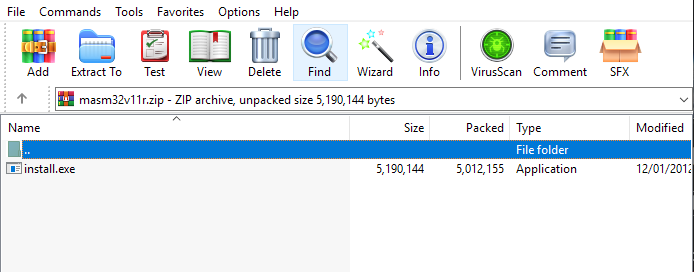
Installing MASM on Windows 10
Double click on the installer. It will ask for administrator privileges. This application is deemed to be safe so you can safely press yes. After you have granted permissions you will see a dialog similar to the one below:
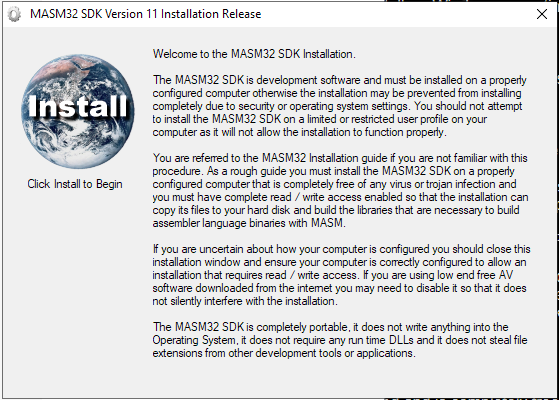
Click on the install icon on the top left and select the drive you want to use to install MASM. I will select my D: partition. MASM will install all the necessary files to the root directory of whatever partition you select.
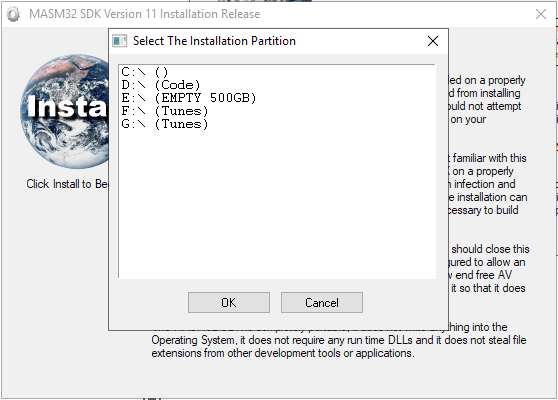
Tip: I like to create a separate partition for my assembly projects and install MASM to the root directory of the partition. This makes it much easier to include libraries and includes such as windows.inc and friends.
MASM will proceed to run a bunch of tests to see if you’re computer is compatible and able to run MASM32. You will see a number of dialog boxes appear that require you to press the ok button.
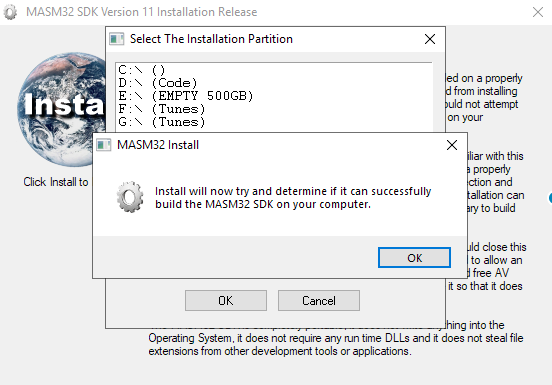
Once the tests are complete press the extract button.
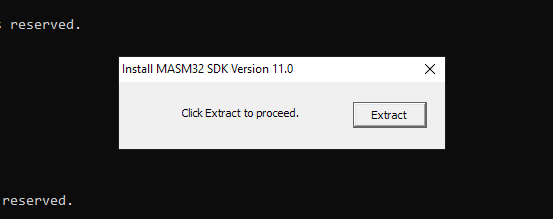
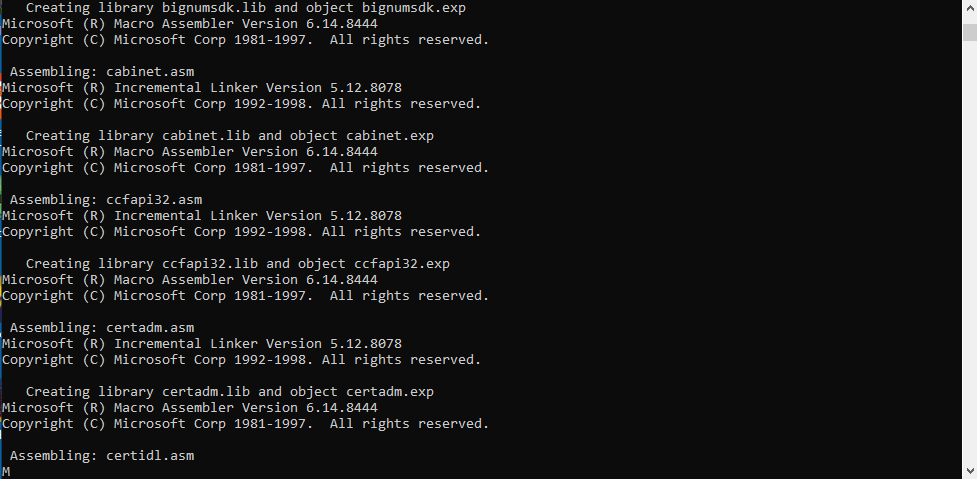
After the extraction has completed you will see another dialog box that informs you a command prompt will appear to complete the installation. Press ok and let the installation finish. It should only take a few moments.
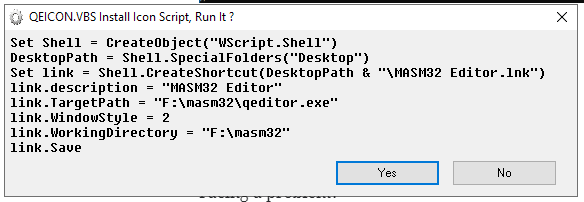
After the installation has finished you will once again see a couple of dialog boxes that require you to press ok. You will also see a different type of dialog box similar to the one below. This runs a VB script to add an icon to your desktop for the MASM editor. If you want an icon on your desktop press yes.
Finally if everything went well you will see the final dialog box telling you the installation is complete.
Don’t run off just yet
I don’t use the default MASM editor. Instead I use Vim, or Sublime. This means I need to call the MASM compiler and linker directly from the command line to build my code. To do this you need to add the location of the MASM32 installation directory to your Path environment variable.
Adding a directory to environment variable Path on Windows 10
Open up the system properties dialog by entering the following command on the command prompt:
sysdm.cpl SystemProperties
Click the advanced tab, and click the Environment Variables button.
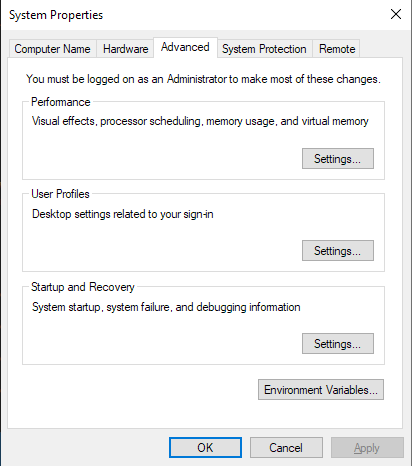
Next select the Path item from the list and click Edit.
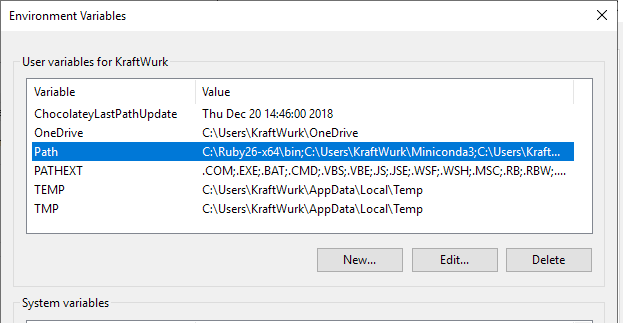
On the next dialog press New and enter the path to the MASM bin directory. This contains the tools needed to compile and link assembly. For me the path is D:masm32bin. In most cases just change the drive letter if you installed to a different partition. The rest of the path is the same.

Press the ok button, and then then the apply button to save and close the system properties dialog.
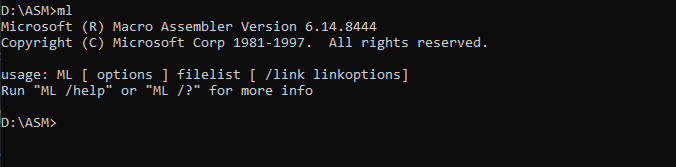
Open a new command prompt and enter the following command to run the MASM assembler:
ml
If everything installed correctly and your Path is setup correctly you will see some output similar to the image below:
💡 Assembly Language Weekly Newsletter
Every week I publish a newsletter that contains tutorials, tips, tricks and resources related to assembly language. If you would like to receive this newsletter subscribe here: http://eepurl.com/ghximb
All Done!
And that’s all there is to it folks. If you want to hit the ground running check out my guide on how to compile and link MASM assembly to produce an executable on Windows 10.
If you’re having any issues following this guide please leave a comment and I will help you the best I can. You can also check out the official documentation includes detailed installation instructions and FAQ’s to solve common problems.
В данной статье я хочу рассмотреть вопросы, которые могут возникнуть у человека, приступившего к изучению ассемблера, связанные с установкой различных трансляторов и трансляцией программ под Windows и Linux, а также указать ссылки на ресурсы и книги, посвященные изучению данной темы.
MASM
Используется для создания драйверов под Windows.
По ссылке переходим на сайт и скачиваем пакет (masm32v11r.zip). После инсталляции программы на диске создается папка с нашим пакетом C:masm32. Создадим программу prog11.asm, которая ничего не делает.
.586P
.model flat, stdcall
_data segment
_data ends
_text segment
start:
ret
_text ends
end start
Произведём ассемблирование (трансляцию) файла prog11.asm, используя ассемблер с сайта masm32.
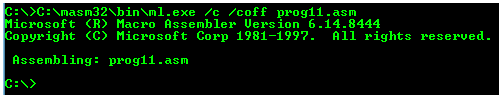
Ключ /coff используется здесь для трансляции 32-битных программ.
Линковка производится командой link /subsystem:windows prog11.obj (link /subsystem:console prog11.obj)
Как сказано в Википедии
MASM — один из немногих инструментов разработки Microsoft, для которых не было отдельных 16- и 32-битных версий.
Также ассемблер версии 6. можно взять на сайте Кипа Ирвина kipirvine.com/asm, автора книги «Язык ассемблера для процессоров Intel».
Кстати, вот ссылка на личный сайт Владислава Пирогова, автора книги “Ассемблер для Windows”.
MASM с сайта Microsoft
Далее скачаем MASM (версия 8.0) с сайта Microsoft по ссылке. Загруженный файл носит название «MASMsetup.exe». При запуске этого файла получаем сообщение -«Microsoft Visual C++ Express Edition 2005 required».
Открываем этот файл архиватором (например 7zip). Внутри видим файл setup.exe, извлекаем его, открываем архиватором. Внутри видим два файла vc_masm.msi,vc_masm1.cab. Извлекаем файл vc_masm1.cab, открываем архиватором. Внутри видим файл FL_ml_exe_____X86.3643236F_FC70_11D3_A536_0090278A1BB8. Переименовываем его в файл fl_ml.exe, далее, произведём ассемблирование файла prog11.asm, используя ассемблер fl_ml.exe.

MASM в Visual Studio
Также MASM можно найти в папке с Visual Studio (у меня VS 10) вот здесь: C:Program FilesMicrosoft Visual Studio 10.0VCbinml.exe.

Для того, чтобы запустить на 32- или 64-разрядной системе и создавать программы, работающие как под 32-, так и под 64-разрядной Windows, подходит MASM32 (ml.exe, fl_ml.exe). Для того, чтобы работать на 32- и 64-разрядных системах и создавать программы, работающие под 64-разрядной Windows, но неработающие под 32-разрядной нужен ассемблер ml64.exe. Лежит в папке C:Program FilesMicrosoft Visual Studio 10.0VCbinamd64 и вот здесь — C:Program FilesMicrosoft Visual Studio 10.0VCbinx86_amd64.
TASM
Программный пакет компании Borland, предназначенный для разработки программ на языке ассемблера для архитектуры x86. В настоящее время Borland прекратила распространение своего ассемблера.
Скачать можно, например, здесь. Инсталлятора нет, просто извлекаем программу. Вот исходник из книги Питера Абеля (рис. 3.2) «Язык Ассемблера для IBM PC и программирования».
stacksg segment para stack 'stack'
    db 12 dup ('stackseg')
stacksg ends
codesg segment para 'code'
begin proc far
 assume ss:stacksg,cs:codesg,ds:nothing
 push ds
 sub ax,ax
 push ax
 mov ax, 0123h
 add ax, 0025h
 mov bx,ax
 add bx,ax
 mov cx,bx
 sub cx,ax
 sub ax,ax
 nop
 ret
begin endp
codesg ends
 end begin
Выполним ассемблирование (трансляцию) файла abel32.asm.
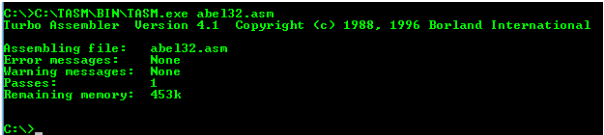
Корректность работы программы можно проверить, произведя линковку (tlink.exe) объектного файла и запустив полученный файл в отладчике.
Как было сказано выше, MASM можно использовать для работы с 16-битными программами. Выполним ассемблирование (трансляцию) программы abel32.asm с помощью ассемблера MASM:

Ключ /coff здесь не используется.
Линковка производится файлом link16.exe
Вот здесь приводится порядок действий, которые необходимо выполнить для запуска TASM в DOSbox. Для линковки понадобится файл DPMI16BI.OVL
FASM
В статье Криса Касперски «Сравнение ассемблерных трансляторов» написано, что «FASM — неординарный и весьма самобытный, но увы, игрушечный ассемблер. Пригоден для мелких задач типа „hello, world“, вирусов, демок и прочих произведений хакерского творчества.»
Скачаем FASM с официального сайта. Инсталлятора нет, просто извлекаем программу. Откроем fasm editor — C:fasmfasmw.exe. В папке C:fasmEXAMPLESHELLO есть файл HELLO.asm.
include 'win32ax.inc'
.code
  start:
 invoke    MessageBox,HWND_DESKTOP,"Hi! I'm the example program!",invoke GetCommandLine,MB_OK
    invoke    ExitProcess,0
.end start
Откроем файл HELLO.asm из fasmw.exe. Изменим строку include ‘win32ax.inc’ на строку include ‘c:fasmINCLUDEWIN32AX.INC’. Запускаем из меню Run → Run.

Вот ссылки на ресурсы, посвященные FASM:
→ FASM на Cyberforum’е
→ FASM на asmworld .com программы под Dos
→ Цикл статей «Ассемблер под Windows для чайников»
→ Сайт на narod’е
FASM в Linux
Для того, использовать FASM в Linux (у меня Ubuntu), скачаем соответствующий дистрибутив (fasm-1.71.60.tgz), распакуем его, в папке у нас будет бинарный файл fasm, копируем этот файл в /usr/local/bin для того, чтобы можно было запускать его из консоли, как любую другую команду.Выполним ассемблирование программы hello.asm из папки fasm/examples/elfexe/hello.asm.

Корректность работы программы можно проверить в отладчике.
Nasm
Nasm успешно конкурирует со стандартным в Linux- и многих других UNIX-системах ассемблером Gas.
Nasm в Linux можно установить с помощью менеджера пакетов или из командной строки: в дистрибутиве Debian (Ubuntu) командой apt-get install nasm, в дистрибутивах Fedora, CentOS, RedHat командой yum install nasm.
Создадим программу, которая 5 раз выводит сообщение “Hello”. Пример взят из книги Андрея Викторовича Столярова “Программирование на языке ассемблера NASM для ОС UNIX”. Учебник, а также библиотека “stud_io.inc” есть на личном сайте автора.
%include "stud_io.inc"
global _start
section .text
_start: mov eax, 0
again:  PRINT "Hello"
PUTCHAR 10
inc eax
cmp eax, 5
jl again
FINISH
Выполним ассемблирование и линковку и запустим файл hello.asm.
$ nasm -f elf hello.asm
$ ld hello.o -o hello
$ ./hello
Для 64bit необходимо использовать команду nasm -f elf64 hello.asm
NASM для Windows
NASM для Windows можно установить, скачав соответствующий дистрибутив с соответствующего сайта.
Ассемблирование:
nasm -f bin имя_файла.asm -o имя_файла.com
Ссылки на ресурсы, посвященные Nasm:
→ Сайт А.В. Столярова
→ Сайт, на котором лежит электронный учебник (в архиве)
→ То же самое
AS
Стандартный ассемблер практически во всех разновидностях UNIX, в том числе Linux и BSD. Свободная версия этого ассемблера называется GAS (GNU assembler). Позволяет транслировать программы с помощью компилятора GCC.
Из учебников удалось найти только книгу на английском «Programming from the ground up». На русском удалось найти только одну главу из книги С. Зубкова «Assembler для DOS, Windows и UNIX».
Возьмем пример программы, которая ничего не делает, с сайта. Создадим программу gas.s
.section .text
   .globl _start
   _start:
      movl  $1, %eax
      movl  $2, %ebx
      int   $0x80
Выполним ассемблирование (трансляцию), линковку и запуск программы:
$ as -o gas.o gas.s
$ ld -o gas gas.o
$ ./gas
Если в данной программе изменить _start на main, то можно выполнить ассемблирование (трансляцию) и линковку компилятором gcc.
.section .text
   .globl main
   main:
      movl  $1, %eax
      movl  $2, %ebx
      int   $0x80
Выполним ассемблирование (трансляцию), линковку и запуск программы:
$ gcc gas.s -o gas
$ ./gas
Выводы: если вы изучаете программирование под Windows, то вы можете остановить свой выбор на Masm; Tasm больше не поддерживается, но для обучения по старым классическим учебникам подойдёт.
Под Linux Gas подойдет тем, кто использует GCC, а тем, кому не нравится синтаксис Gas, подойдёт Nasm.
P.S. Про обработку строк в ассемблере на примере создания транслятора простого «эзотерического» языка можно прочитать здесь.
P.P.S. Упрощенный ограниченный набор ассемблерных инструкций используется в учебной модели компьютера Little Man Computer, которому у меня также посвящено несколько статей ссылка.
MASM is an assembler developed and maintained by Microsoft. MASM (8086) won’t run on Windows 7 or newer versions easily whereas it runs well on Windows XP. That is why in this post I am going to show you how to install MASM in Windows.
This tutorial is valid for Windows 10, 8.1, 8, 7.
So, Let’s begin.
Here are 5 steps to Install MASM in Windows.
1. Setup DOSBox on your OS
First, you have to download DOS Box for your PC
Visite this link (click here)
Click on Download
Wait 5-second download will start automatically
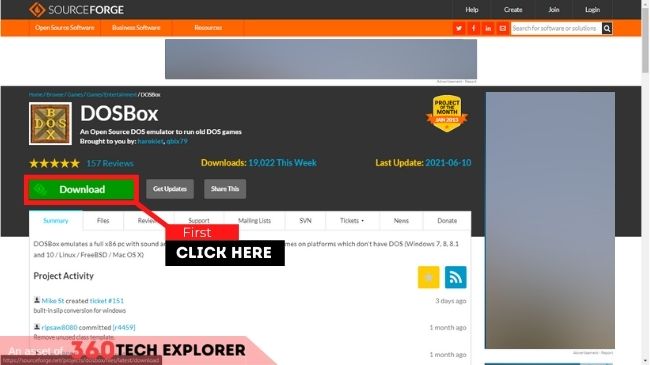
After that install DOSBox if you have any doubts about how to install DOSBox, Here is a Guide on how to install DOSBox on Windows.
2. Download 8086.rar
Visit this link (click here)
Click on Download
3. Setup 8086.rar
Open the zip file that you downloaded in step 2.
Copy the 8086 folders in drive C:
4. Create Assembly file (.asm)
Open your favorite code editor,
Enter the following code
; Hello World program by 360 Tech Explorer’s

DATAS  SEGMENT
     STRING  DB  'Hello World!',13,10,'$'

DATAS  ENDS

CODES  SEGMENT
     ASSUME    CS:CODES,DS:DATAS

START:
     MOV  AX,DATAS
     MOV  DS,AX

     LEA  DX,STRING

     MOV  AH,9
     INT  21H

     MOV  AH,4CH
     INT  21H
CODES  ENDS
END   START
Save this file with the “.asm” file extension.
5. Run Assembly file (.asm) in Windows
Open DOSBox by clicking on it.
Enter the following command in DOSBox
Z:> mount c c:8086This command will mount 8086 directory as C drive for DOSBox
Then, execute the following command to navigate into drive C
Z:> c:If you want to write a new assembly file, execute the following command
C:> edit file_name.asmIf you already have the Assembly file, follow the following steps
Copy your Assembly file to the “C:/8086” folder (remember the name)
Then execute the following to run that file
C:> masm your_file_here.asm
C:> link your_file_here.obj
C:> your_file_here.exeMASM (Microsoft macro assembler ) is a x86 assembler that uses intel syntax for for MS-DOS and Microsoft windows . There are two version of assembler . One is 32 bit package and another is 64 bit package .
Follow these simple tutorial to install MASM package on any windows version
Windows installation Steps :
- Download DOSBox0.74-win32-installer.exe installer DOWNLOAD (Link 1) or you can download from this link Download (Link 2) OR Download (Link 3)
- Download 8086_Assembler.zip DOWNLOAD file and unzip it to the C: drive of your windows .
- Run DOSBOX0.74 installer and install it .
- After successful installation and run the package , you can get a black screen . This is the terminal of the MASM .
- Enter following commands in that terminal screen .
> mount c c:8086
> c:
> edit (your programme name).asm
- Then you can get a blue window . This is the window to write your first assembler program .
If you have any query or doubts , you can check this video tutorials Link
or
You can check with this screen-shots

If you are using Ubuntu , Please follow the instructions to install MASM
Ubuntu installations Steps :
- Open terminal (Ctrl+t)
- Enter the following commands in the terminal to install dosbox
sudo apt-get update
sudo apt-get install dosbox
- Next create a folder 8086 in /home path by sudo mkdir /home/8086
- then give permission to this folder by sudo chmod -R 777 /home/8086
- Download 8086_Assembler.zip DOWNLOAD file and extract it to the /home/8086 folder
- Then run DOSBox from Applications >Games >DOSBox Emulator
- Type the following commands to mount
mount c /home/8086
c:
- Now you are ready to type your program in Linux.
How to run the MASM program ?
After the successful installation Dosbox and Assembler uisng above step , you will write your first program.
- Consider if your program name is » sample.asm « . Then exit from the editor .
- Create the object files by typing the below command and press enter
masm sample.asm
- After the above steps , it will generate the object files
- Press Enter again and again until you will get the compilation errors / success message
- If any errors occur , type edit sample.asm . Using this command you can correct the program code.
- Follow the steps 2- 4 after editing the code , once your errors got resolved , enter the command link sample . This command will generate sample.exe file
- Finally run the program by sample.exe command
- You can see the output of the program
- If you want to exit from the Dosbox , type exit command
Please comment if you have any suggestions or query . We will try to resolve soon .
This utility contains a set of software development tools such as the code editor, compiler, linker, debugger and browser for writing new applications.
Developer:
Microsoft Corporation
Windows version:
Windows XP, Windows Vista, Windows 7, Windows 8, Windows 8.1, Windows 10, Windows 11
MASM is a Windows tool for developing, compiling and debugging the programming code. New modules are generated using the OMF format first introduced in MS-DOS. It is important to mention that MASM is an obsolete program and no longer supported by the developer. The final version is included in Visual Studio.
Installation
You are instructed to unpack the included IMG file into the root directory of a 3,5 inch diskette. The next step is to restart the computer and adjust the BIOS settings to boot from the floppy drive. All operations are performed via the MS-DOS command line.
Assembler capabilities
With the help of this software users can utilize standard Intel syntax for compiling C applications. There is support for 16, 32 and 64-bit sources. Moreover, the assembler is compatible with hundreds of processor instructions.
It is possible to use shorthand mnemonics for segment descriptors. You can quickly generate real mode executables as well. Advanced memory management parameters are available. The resulting apps are fully compliant with the Visual C++ specification and can be modified in any popular development environment.
Features
- free to download and use;
- offers you instruments for writing, compiling and debugging C applications;
- there is support for 16, 32 and 64-bit sources;
- you can use shorthand mnemonics for segment descriptors;
- compiled apps are compatible with Visual Studio;
- compatible with all modern versions of Windows.
 Universal Extractor
Windows XP, Windows Vista, Windows 7, Windows 8, Windows 10 Free
Using this simple tool, you are able to decompress files and folders. Moreover, you have the option to save the history of all performed tasks and debugging info.
ver 1.6.1
 XULRunner
Windows XP, Windows Vista, Windows 7, Windows 8, Windows 10, Windows 11 Free
Using this comprehensive utility, you are able to develop and deploy Mozilla-based applications. It requires advanced programming knowledge to use efficiently.
ver 41.0.2
 Node js
Windows XP, Windows Vista, Windows 7, Windows 8, Windows 10, Windows 11 Free
With the help of this powerful utility, users are able to develop network apps using JavaScript. Moreover, it is possible to extend its functionality via plugins.
ver 18.13.0
 PowerDesigner
Windows XP, Windows Vista, Windows 7, Windows 8, Windows 10 Free
The application was designed to help users design and schedule important business transformations. It is also possible to connect to a wide range of databases.
ver 16.7.5.0
 Libero SoC
Windows 7, Windows 8, Windows 8.1, Windows 10, Windows 11 Free
With the help of this specialized utility users can design complex field-programmable gate array processors. There are tools for optimizing hardware performance.
ver 2022.3
 BlueVoda Website Builder
Windows XP, Windows Vista, Windows 7, Windows 8, Windows 10, Windows 11 Free
The software distribution was developed to help users build websites. Additionally, it is possible to import and modify a wide array of multimedia objects.
ver 12.2.0.0
 Advantage Database Server
Windows XP, Windows Vista, Windows 7, Windows 8, Windows 10, Windows 11 Paid program
With the help of this comprehensive tool, you can send SQL requests to various databases. Additionally, you have the ability to backup internal files.
ver 11.10
 Progress OpenEdge
Windows XP, Windows Vista, Windows 7, Windows 8, Windows 8.1, Windows 10, Windows 11 Free
This software development platform allows you to create, compile and deploy flexible business applications using several common programming languages.
ver 11.4