

Новая мышь Apple Magic Mouse во истину творит чудеса. Волшебство начинается, когда вы управляете компьютером также как смартфоном, но не с помощью сенсорного экрана, а посредством мыши. Конструкция имеет всего одну кнопку и чувствительную поверхность, которая распознает жесты. Согласитесь, что до сегодняшнего дня даже представить себе то, что можно свайпнуть мышкой, было невозможно.
Согласно внутренней политике Apple все разрабатываемые ей продукты «заточены» под яблочные устройства. Они легко интегрируются, обмениваются данными между собой. Никаких проблем с подключением и обновлением не имеют. Так и Magic Mouse шикарно работает на Mac. C другими операционными системами немного сложнее. Так на Windows через обычное Bluetooth-соединение вы получите обычную мышку, но с гораздо меньшим функционалом.
Однако существуют способы, как подключить весь функционал Magic Mouse на Windows без встроенных ограничений от компании-разработчика.
Самый легкий способ – воспользоваться бесплатными приложениями стороннего разработчика Trackpadmagic.
- Скачиваем драйвер Magic Mouse, чтобы Windows «увидела и опознала» устройство и воспринимала его как стандартную мышь.
- Качаем Magic Mouse Utility. Устанавливаем утилиту на компьютер. Теперь нам становятся доступными «волшебные» функции в виде быстрой прокрутки и возможности отслеживать оставшийся процент заряда батареи.
- Заходим в настройки утилиты и включаем ее автозапуск после каждой загрузки Windows. Если программа не активирована, Windows мышь проигнорирует.
- Подключаем Magic Mouse через Bluetooth-соединение. Для пароля можно использовать стандартный набор нулей 0000.

Как подключить Apple Magic Mouse к ПК с помощью драйверов Bootcamp
Bootcamp – настоящая палочка-выручалочка для работы яблочных устройств с операционной системой Windows. Поможет она и в нашем случае.
Порядок действий:
- Качаем Bootcamp 3.0 и запускаем установку через файл Setup. По завершении выполняем перезагрузку.
- Качаем Bootcamp 3.1, устанавливаем и снова перезагружаемся.
- Качаем и устанавливаем Bootcamp 3.2. Перезагружаемся.
Именно такая последовательность творит чудеса. Если возиться с драйверами Bootcamp нет времени или желания, то можно установить AppleWT и AppleMultiTP.
Если что-то пошло не так и мышь не работает:
- Идем в настройки ПК, ищем вкладку Bluetooth и жмем на «Добавить устройство».
- Включаем Magic Mouse.
- После того как Windows обнаружит мышку, добавляем ее в список доступных устройств.
Пользуемся и наслаждаемся волшебством Apple Magic Mouse на ПК с Windows.

Консультант сайта appleiwatch.name, соавтор статей. Работает с продукцией Apple более 10 лет.
Apple Magic Mouse — возможно, самая необычная компьютерная мышь в мире. Почему? У неё есть всего одна кнопка, а поверхность распознает мультитач-жесты, так что происходящим на экране компьютера можно управлять жестами — так же, как на iPhone или iPad. Хотите попробовать такую мышку на своём ПК на Windows?
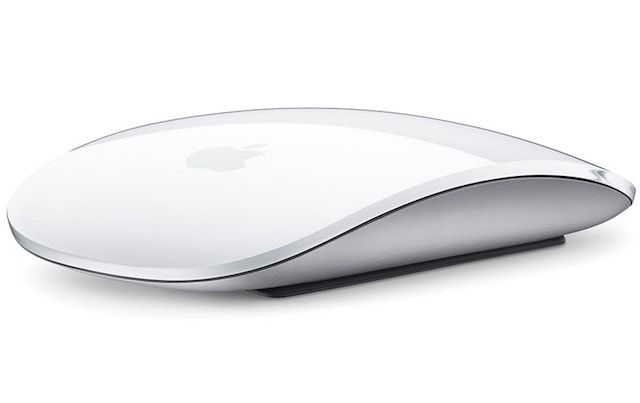
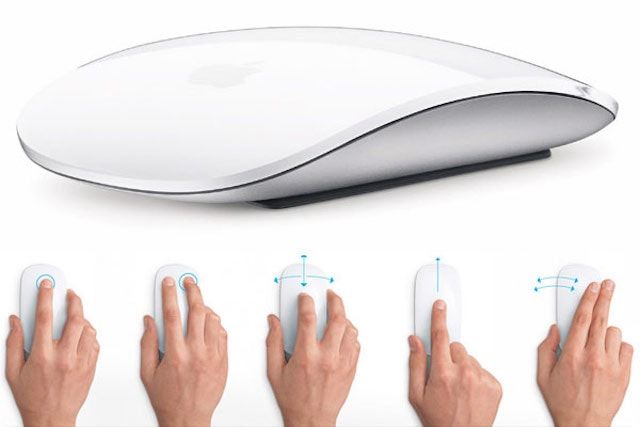
Подключить Magic Mouse к компьютеру на Windows просто — достаточно включить на ПК модуль Bluetooth. Но после сопряжения мыши и компьютера вы получите самую обыкновенную мышку, да к тому же ещё и однокнопочную. Все «сочные» фишки вроде нажатия в любой точке, нажатия правой кнопки мыши двумя пальцами, скроллинга веб-страниц и фотографий двумя пальцами, импульсной прокрутки протестировать не получится. В чём дело?
В позиции Apple, которая сделала Magic Mouse официально совместимой только с компьютерами Mac. Но не расстраивайтесь — уникальные жесты «яблочной» мышки все-таки можно перенести на ПК. Сразу несколько способов по настройке Magic Mouse под Windows предлагается ниже.
Способ I — Magic Mouse Utilities
Самый простой вариант «подружить» мышь Apple с вашим компьютером — набор бесплатных сторонних программ от разработчика Trackpadmagic.
1. Убедитесь, что на вашем ПК есть модуль Bluetooth. Если его нет, приобретите специальный Bluetooth-адаптер. Рекомендуемая модель для покупки — IOGEAR Bluetooth 4.0 USB Micro Adapter (GBU521), он проверен на работу с Magic Mouse. Пожалуйста, имейте в виду — с «яблочной» мышью совместим не каждый адаптер. Так что при прочих равных следует отдать предпочтение именно модели, приведенной выше.
2. Скачайте драйвер Magic Mouse. C его помощью вы сможете подключить мышь к компьютеру на Windows и получить базовую функциональность.
3. Скачайте и установите Magic Mouse Utility. C её помощью вы получите доступ к «продвинутым» функциям вроде скроллинга и возможности следить за уровнем заряда батареи. Условие — утилита должна быть включена всякий раз, когда вы пользуетесь чудо-мышкой Apple. Для этого зайдите в настройки и активируйте автозапуск сразу же после загрузки Windows.
4. Подключите Magic Mouse к ПК через Bluetooth. Если во время сопряжения возникнут проблемы, попробуйте провести сопряжение устройств с кодом 0000.
Способ II — установка драйверов Bootcamp
Bootcamp — набор драйверов для работы «железа» Apple в окружении Windows. Обычно их используют для установки «винды» второй системой на Mac, но подойдут они и в нашем случае.
Идеальный вариант для установки — последовательная установка версий драйверов Bootcamp.
Сделайте следующее:
1. Скачайте Bootcamp 3.0, смонтируйте его образ на диске и запустите файл Setup. После окончания установки перезагрузите ПК.
2. Установите версию Bootcamp 3.1 (32-разрядные ПК, 64-разрядные ПК). Затем снова перезагрузите ПК.
3. Установите Bootcamp версии 3.2 (32-разрядные ПК, 64-разрядные ПК). Перезагрузите компьютер.
Если желания «накатывать» все версии Bootcamp у вас нет, установите два драйвера: AppleWT и AppleMultiTP
Если Magic Mouse по-прежнему не работает:
1. Откройте на компьютере раздел настроек Bluetooth, выберите Добавить устройство.
2. Включите Magic Mouse.
3. Когда Windows распознает мышь, добавьте её в список устройств.
Готово! Теперь вы можете опробовать Magic Mouse в действии. Доступны будут не все функции, но самое интересное — жесты, клики, скроллинг — доступны Windows.
Смотрите также:
- Parallels Desktop 11 — улучшенная производительность, поддержка OS X El Capitan и Windows 10.
- Сервис KeyMe или как проникнуть в чужую квартиру при помощи приложения для iPhone.
- Как покупать игры или приложения в App Store без привязки карты.
- Диктовка, или как перевести речь в текст на iPhone и iPad.
- Как просматривать тексты песен из Apple Music на iPhone.
На чтение 2 мин. Просмотров 3.9k. Опубликовано 03.09.2019
Magic Mouse от Apple – одна из самых высокотехнологичных периферийных устройств в мире, но многие пользователи сообщали, что Apple Magic Mouse не будет подключаться к Windows 10. Это может быть большой проблемой, но есть способ исправить это. вопрос.
Когда мы установили Windows 10, беспроводная мышь и клавиатура Apple установились нормально. Я случайно убрал мышь в устройствах Bluetooth в настройках. Теперь я могу использовать только свою клавиатуру и не могу заставить мышь снова успешно выполнить сопряжение. Иногда Windows находит его, но когда я пытаюсь выполнить сопряжение, он говорит, что он не работает, а затем он не отображается снова. Затем я перезагружаю Windows и пытаюсь снова. Он будет отображаться только в первый раз, а затем будет продолжать поиск, не находя его. Я поменял батарейки и полностью разочарован!
Пожалуйста, ПОМОГИТЕ !!
Содержание
- Что делать, если Magic Mouse не работает в Windows 10?
- 1. Проверьте наличие последней версии драйвера Bluetooth .
- 2. Проверьте, возможны ли соединения Bluetooth
- 3. Подключите волшебную мышь к Windows в первый раз
Что делать, если Magic Mouse не работает в Windows 10?
1. Проверьте наличие последней версии драйвера Bluetooth
.
-
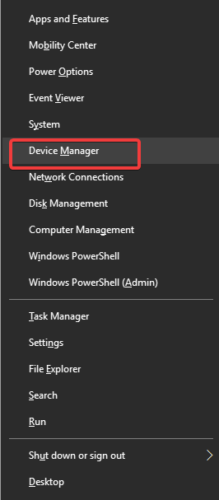
Нажмите Win Key + X на клавиатуре и выберите Диспетчер устройств.

-
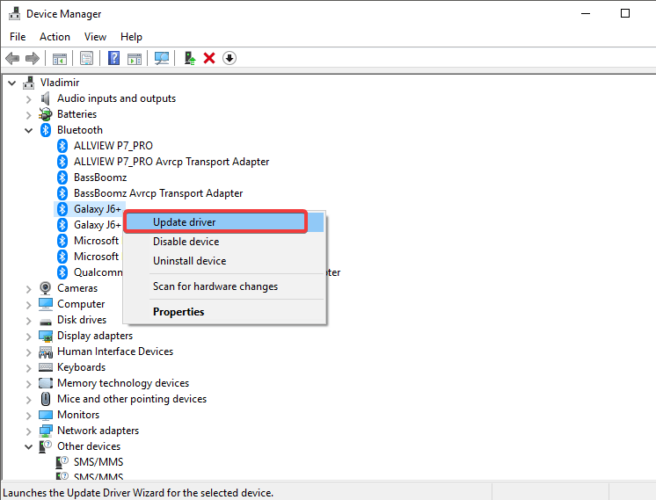
В окне диспетчера устройств найдите мышь Apple Magic Mouse, щелкните ее правой кнопкой мыши и выберите Обновить драйвер .
- Начнется процесс автоматического поиска драйвера.
- После завершения процесса обновления рекомендуется перезагрузить компьютер.


Кроме того, вы можете использовать сторонние инструменты, такие как TweakBit Driver Updater , для автоматического обновления всех ваших драйверов всего несколькими щелчками мыши.
– Загрузите средство обновления драйверов Tweakbit
Отказ от ответственности: некоторые функции этого инструмента могут быть не бесплатными
2. Проверьте, возможны ли соединения Bluetooth

- Активируйте Bluetooth на своем ПК и включите Волшебную Мышь (виден зеленый).
- Убедитесь, что батарея вашей Magic Mouse составляет не менее 50% , чтобы избежать ненужных осложнений в процессе сопряжения.
3. Подключите волшебную мышь к Windows в первый раз
- Нажмите правой кнопкой мыши на значок Bluetooth на панели задач.
-
Выберите Добавить устройство Bluetooth.
-
В открывшемся окне снова выберите Добавить устройство Bluetooth .
- Найдите волшебную мышь в списке доступных устройств и выберите .
- Следуйте инструкциям на экране для завершения процесса сопряжения.


В этой статье мы рассмотрели быстрый способ настроить все, а затем легко подключить мышь Apple Magic Mouse к ПК с Windows 10. Если вы воспользуетесь этим руководством, вы наверняка добьетесь нужного результата, и через несколько минут вы сможете начать пользоваться волшебной мышью.
Пожалуйста, не стесняйтесь сообщить нам, помогло ли вам это руководство, используя раздел комментариев ниже этой статьи.
Аппаратное обеспечение Apple дорогое. Но в большинстве случаев это действительно хорошо работает. Если вы ищете беспроводную клавиатуру или беспроводную мышь, периферийные устройства Apple стоят своей цены.
Apple не блокирует работу своего оборудования на других устройствах. Вы можете использовать клавиатуру Apple или Magic Mouse в системе Windows 10 так же легко, как мышь или клавиатуру других производителей. Возможно, вам придется переназначить некоторые клавиши на клавиатуре Apple, но мышь будет работать как есть.
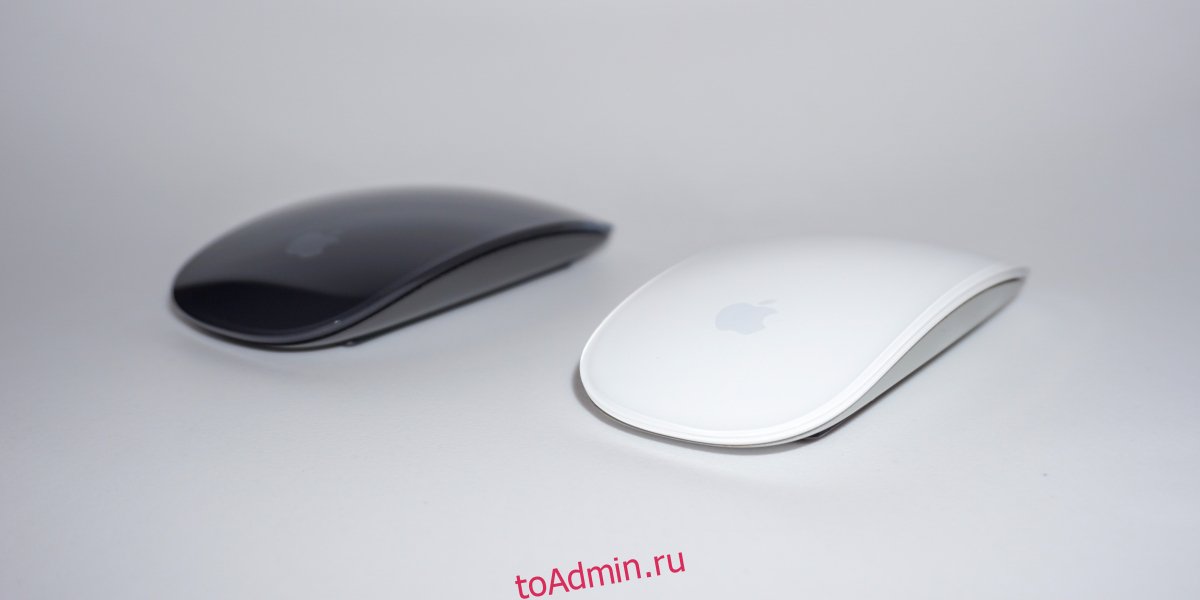
Мышь Apple Magic Mouse подключается через Bluetooth. Чтобы использовать его с системой Windows 10, вам необходимо подключить его через Bluetooth. Сопряжение устройства Bluetooth в Windows 10 достаточно просто, но ОС часто не может обнаружить устройства Bluetooth. Это может быть проблема со службами Bluetooth в Windows 10, оборудованием в системе или сопряженным устройством.
Если вам не удается подключить Magic Mouse к системе Windows 10, попробуйте выполнить следующие основные проверки, а затем исправления, перечисленные ниже.
Что делать, если Apple Magic Mouse не подключается к Windows 10
Основные проверки
Попробуйте сделать следующее, прежде чем пытаться решить проблему с не подключающейся волшебной мышью.
Перезагрузите систему.
Выключите Bluetooth, перезапустите систему и снова включите ее.
Попробуйте подключить к компьютеру другое устройство Bluetooth.
Удалите все сопряженные устройства Bluetooth и попробуйте подключить только Magic Mouse.
1. Замените батарею в Magic Mouse.
Apple Magic Mouse создана для работы с собственными устройствами, поэтому она может применять случайные правила при попытке подключения к системе, отличной от Apple.
Замените батарею в Magic Mouse на новую. Попробуйте подключить новое устройство после замены батареи.
2. Отключитесь от других систем.
Если вы ранее сопрягали Magic Mouse с другой системой, убедитесь, что устройство было отключено. На всякий случай разорвите пару. Возможно, Magic Mouse сопрягается с первым устройством и поэтому не может подключиться к системе Windows 10.
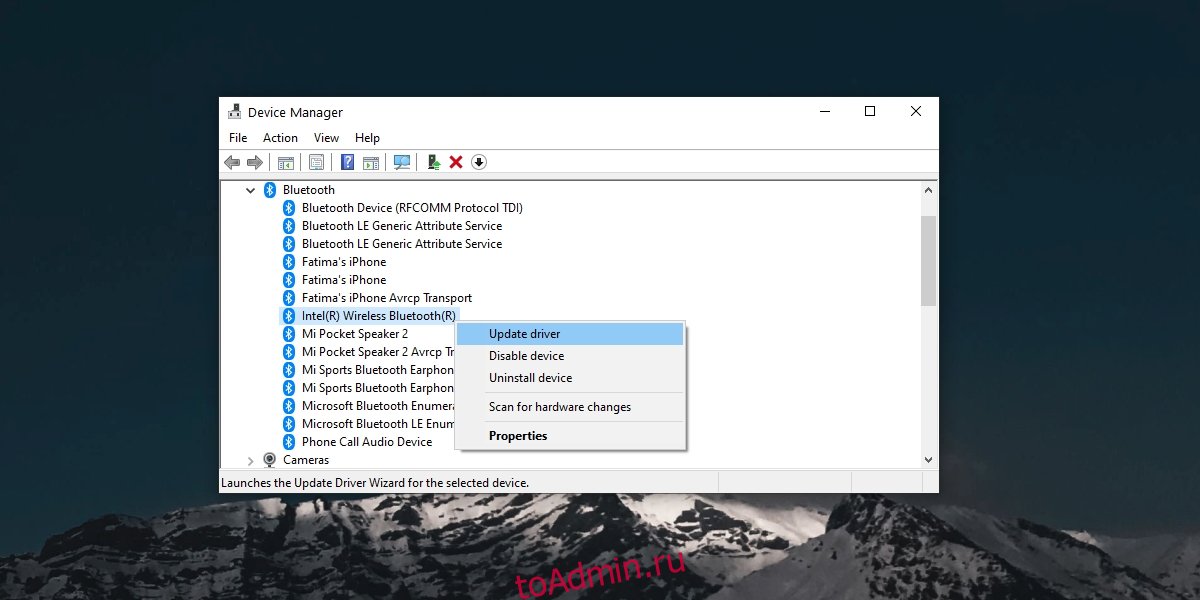
3. Проверьте обновления драйвера Bluetooth.
Попробуйте обновить драйверы Bluetooth.
Откройте диспетчер устройств.
Разверните Bluetooth.
Щелкните правой кнопкой мыши чип Bluetooth и выберите «Обновить драйверы».
Найдите в Интернете доступные драйверы и установите все доступные обновления.
Перезагрузите систему и попробуйте подключить Magic Mouse.
4. Разорвите пару и снова заплатите
Если вам удалось выполнить сопряжение Magic Mouse, но не удается заставить ее подключиться, попробуйте разорвать сопряжение и снова выполнить сопряжение.
Откройте приложение «Настройки» (сочетание клавиш Win + I).
Перейдите в Устройства> Bluetooth.
Выберите Magic Mouse и нажмите «Удалить устройство».
Перезагрузите систему.
Снова откройте приложение «Настройки».
Перейдите в Устройства> Bluetooth.
Щелкните Добавить устройство.
Выполните сопряжение и подключите мышь Apple Magic Mouse.
5. Загрузите драйверы из Bootcamp.
Компьютеры Mac на базе Intel могут работать под управлением Windows 10 с Bootcamp. Bootcamp распространяется Apple и содержит необходимые драйверы, необходимые для работы периферийных устройств, таких как Magic Mouse, в Windows 10.
Посетите эту ссылку и скачайте Bootcamp. Получите самую последнюю версию 2015 года.
Распакуйте папку.
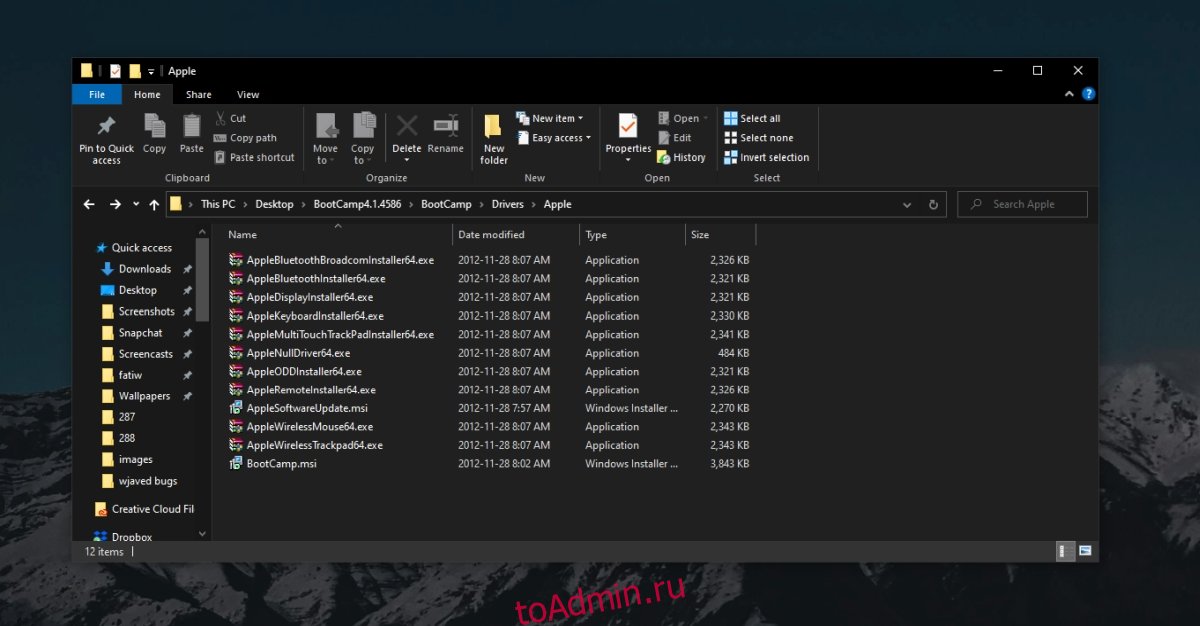
В извлеченной папке заходим в эту папку: BootCamp4.1.4586BootCampDriversApple
Запустите файл AppleMultiTouchTrackPadInstaller64.exe, чтобы установить драйверы для Magic Mouse.
Перезагрузите систему.
Подключите мышь Magic Mouse, и она должна начать работать.
Magic Mouse Windows 10 Заключение
Magic Mouse не сложно настроить. В конце концов, это простое периферийное устройство, работающее через Bluetooth. В большинстве случаев простой перезапуск системы и / или отключение и повторное сопряжение устройства заставят его работать. Если ваша система Windows 10 устарела, т. Е. Предшествует выпуску Magic Mouse 2, вам могут потребоваться драйверы Bootcamp.
Apple Magic Mouse не будет подключаться к Windows 10 [ЭКСПЕРТНЫЕ РЕШЕНИЯ]
Magic Mouse от Apple — одна из самых высокотехнологичных периферийных устройств в мире, но многие пользователи сообщали, что Apple Magic Mouse не будет подключаться к Windows 10. Это может быть большой проблемой, но есть способ исправить это. вопрос.
Когда мы установили Windows 10, беспроводная мышь и клавиатура Apple установились нормально. Я случайно убрал мышь в устройствах Bluetooth в настройках. Теперь я могу использовать только свою клавиатуру и не могу заставить мышь снова успешно выполнить сопряжение. Иногда Windows находит его, но когда я пытаюсь выполнить сопряжение, он говорит, что он не работает, а затем снова не отображается. Затем я перезагружаю Windows и пытаюсь снова. Он будет отображаться только в первый раз, а затем будет продолжать поиск, не находя его. Я изменил батареи, и я полностью разочарован!
Пожалуйста помоги!!
Что делать, если Magic Mouse не работает в Windows 10?
1. Проверьте последнюю версию драйвера Bluetooth
- Нажмите Win Key + X на клавиатуре и выберите Диспетчер устройств .

- В окне диспетчера устройств найдите мышь Apple Magic Mouse, щелкните ее правой кнопкой мыши и выберите « Обновить драйвер» .

- Начнется процесс автоматического поиска драйвера.
- Как только процесс обновления будет завершен, рекомендуется перезагрузить компьютер.


Кроме того, вы можете использовать сторонние инструменты, такие как TweakBit Driver Updater, для автоматического обновления всех ваших драйверов всего несколькими щелчками мыши .
— Получить сейчас Tweakbit Driver Updater
Отказ от ответственности: некоторые функции этого инструмента могут быть не бесплатными
2. Проверьте, возможны ли соединения Bluetooth

- Активируйте Bluetooth на своем ПК и включите Magic Mouse (зеленый виден).
- Убедитесь, что батарея вашей Magic Mouse составляет не менее 50%, чтобы избежать ненужных осложнений в процессе сопряжения.
3. Подключите волшебную мышь к Windows в первый раз
- Щелкните правой кнопкой мыши значок Bluetooth, расположенный на панели задач .
- Выберите Добавить устройство Bluetooth.

- В открывшемся окне снова выберите «Добавить устройство Bluetooth» .

- Найдите Magic Mouse в списке доступных устройств и выберите его.
- Следуйте инструкциям на экране для завершения процесса сопряжения.


В этой статье мы рассмотрели быстрый способ настроить все, а затем легко подключить мышь Apple Magic Mouse к ПК с Windows 10. Если вы воспользуетесь этим руководством, вы наверняка добьетесь нужного результата, и через несколько минут вы сможете начать пользоваться волшебной мышью.
Пожалуйста, не стесняйтесь сообщить нам, помогло ли вам это руководство, используя раздел комментариев ниже этой статьи.
ЧИТАЙТЕ ТАКЖЕ:
- Как использовать клавиатуру и мышь Apple в Windows 10
- Вы мышь движетесь хаотично? Вот 5 решений, чтобы это исправить
- Исправлено: Bluetooth мышь не работает в Windows 10
by Milan Stanojevic
Milan has been enthusiastic about technology ever since his childhood days, and this led him to take interest in all PC-related technologies. He’s a PC enthusiast and he… read more
Updated on July 30, 2021
- The Apple Magic Mouse is a high quality peripheral.
- Many users reported that they can’t connect it to Windows 10 and the main reason for that is the drivers.
- For any other issues with your input device, explore our Mouse Troubleshooting page.
- If you’re having other problems with your PC, visit our Tech Tutorials Hub for help.
XINSTALL BY CLICKING THE DOWNLOAD FILE
This software will keep your drivers up and running, thus keeping you safe from common computer errors and hardware failure. Check all your drivers now in 3 easy steps:
- Download DriverFix (verified download file).
- Click Start Scan to find all problematic drivers.
- Click Update Drivers to get new versions and avoid system malfunctionings.
- DriverFix has been downloaded by 0 readers this month.
The Magic Mouse from Apple is one of the most high-tech mouse peripherals in the world, but many users reported that the device won’t connect to Windows 10.
This can be a big problem, but, there’s a way to fix this issue.
When we installed windows 10 the wireless Apple mouse and keyboard installed fine. I accidentally removed the mouse in the Bluetooth devices in settings. Now I can only use my keyboard and I’m unable to get the mouse to successfully pair again.
Sometimes windows finds it, but when I attempt to pair it, it says it didn’t work, and then it doesn’t display again. I then reboot windows and try again […].
What can I do if Magic Mouse isn’t working on Windows 10?
1. Check for the latest Bluetooth driver
- Press Win Key + X on your keyboard, and select Device Manager.

- Search for the Apple Magic Mouse, right-click it, and select Update driver.

- The process of searching automatically for the driver will start.
- As soon as the update process is completed, it is recommended that you restart your PC.

Alternatively, you can use third-party tools such as DriverFix to update all your drivers automatically with just a few clicks.
It’s much safer because you don’t risk of downloading and installing a wrong or infected driver on your PC.
Download and install DriverFix, then start the application. The tool will automatically start scanning your system for any potential driver problems.
When the process ends, you will get a list of recommended drivers for you to install.
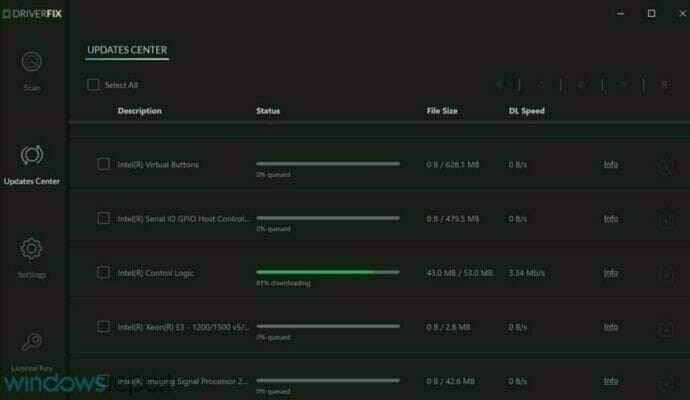 It’s not necessary but it’s a lot easier to click the Select All box and update all in a single step. The alternative is to check the individual boxes for each driver and then click on their corresponding installation button.

DriverFix
DriverFix will find the best Bluetooth driver in seconds and your Magic Mouse will be working properly.
2. Check if Bluetooth connections are possible
- Activate Bluetooth on your PC, and turn on the MagicMouse(green is visible).
- Make sure that the battery of your Magic Mouse is at least 50% to avoid any unnecessary complications in the process of pairing.
3. Pair your Magic Mouse with Windows for the first time
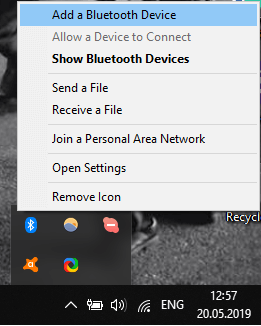
- Right-click on the Bluetooth icon from the Taskbar.
- Select Add a Bluetooth device.
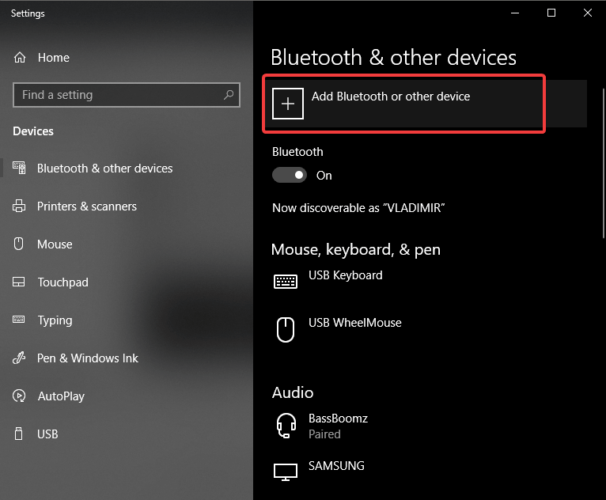
- Choose Add a Bluetooth device again.

- Search for the Magic Mouse in the list of available devices, and select it.
- Follow the on-screen instructions to complete the pairing process.
In this article, we explored a quick way to get everything set up, and then be able to easily pair your Apple Magic Mouse on your Windows 10 PC.
Using this guide will surely get you on track, and you will be able to start using your Magic Mouse in just a few minutes.
Please feel free to let us know if this guide helped you by using the Comment section found below this article.
Still having issues? Fix them with this tool:
SPONSORED
If the advices above haven’t solved your issue, your PC may experience deeper Windows problems. We recommend downloading this PC Repair tool (rated Great on TrustPilot.com) to easily address them. After installation, simply click the Start Scan button and then press on Repair All.

Newsletter
by Milan Stanojevic
Milan has been enthusiastic about technology ever since his childhood days, and this led him to take interest in all PC-related technologies. He’s a PC enthusiast and he… read more
Updated on July 30, 2021
- The Apple Magic Mouse is a high quality peripheral.
- Many users reported that they can’t connect it to Windows 10 and the main reason for that is the drivers.
- For any other issues with your input device, explore our Mouse Troubleshooting page.
- If you’re having other problems with your PC, visit our Tech Tutorials Hub for help.
XINSTALL BY CLICKING THE DOWNLOAD FILE
This software will keep your drivers up and running, thus keeping you safe from common computer errors and hardware failure. Check all your drivers now in 3 easy steps:
- Download DriverFix (verified download file).
- Click Start Scan to find all problematic drivers.
- Click Update Drivers to get new versions and avoid system malfunctionings.
- DriverFix has been downloaded by 0 readers this month.
The Magic Mouse from Apple is one of the most high-tech mouse peripherals in the world, but many users reported that the device won’t connect to Windows 10.
This can be a big problem, but, there’s a way to fix this issue.
When we installed windows 10 the wireless Apple mouse and keyboard installed fine. I accidentally removed the mouse in the Bluetooth devices in settings. Now I can only use my keyboard and I’m unable to get the mouse to successfully pair again.
Sometimes windows finds it, but when I attempt to pair it, it says it didn’t work, and then it doesn’t display again. I then reboot windows and try again […].
What can I do if Magic Mouse isn’t working on Windows 10?
1. Check for the latest Bluetooth driver
- Press Win Key + X on your keyboard, and select Device Manager.
- Search for the Apple Magic Mouse, right-click it, and select Update driver.
- The process of searching automatically for the driver will start.
- As soon as the update process is completed, it is recommended that you restart your PC.
Alternatively, you can use third-party tools such as DriverFix to update all your drivers automatically with just a few clicks.
It’s much safer because you don’t risk of downloading and installing a wrong or infected driver on your PC.
Download and install DriverFix, then start the application. The tool will automatically start scanning your system for any potential driver problems.
When the process ends, you will get a list of recommended drivers for you to install.
It’s not necessary but it’s a lot easier to click the Select All box and update all in a single step. The alternative is to check the individual boxes for each driver and then click on their corresponding installation button.
DriverFix
DriverFix will find the best Bluetooth driver in seconds and your Magic Mouse will be working properly.
2. Check if Bluetooth connections are possible
- Activate Bluetooth on your PC, and turn on the MagicMouse(green is visible).
- Make sure that the battery of your Magic Mouse is at least 50% to avoid any unnecessary complications in the process of pairing.
3. Pair your Magic Mouse with Windows for the first time
- Right-click on the Bluetooth icon from the Taskbar.
- Select Add a Bluetooth device.
- Choose Add a Bluetooth device again.
- Search for the Magic Mouse in the list of available devices, and select it.
- Follow the on-screen instructions to complete the pairing process.
In this article, we explored a quick way to get everything set up, and then be able to easily pair your Apple Magic Mouse on your Windows 10 PC.
Using this guide will surely get you on track, and you will be able to start using your Magic Mouse in just a few minutes.
Please feel free to let us know if this guide helped you by using the Comment section found below this article.
Still having issues? Fix them with this tool:
SPONSORED
If the advices above haven’t solved your issue, your PC may experience deeper Windows problems. We recommend downloading this PC Repair tool (rated Great on TrustPilot.com) to easily address them. After installation, simply click the Start Scan button and then press on Repair All.
Newsletter
The magic mouse is Apple’s answer to the word for wireless mouse and though the company has not intentionally launched it to be used separately and is mainly for Mac desktop PCs, there are users who also use it on other devices, like on Windows. Yes, Apple’s Magic use can be used on Windows PCs as well and if you are wondering how then stick around to this guide and I’ll show you how you can set up and use Apple Magic Mouse on Windows 11 or Windows 10 PCs.

How to add and setup Apple Magic Mouse on Windows
The Magic Mouse also uses Bluetooth connectivity in order to get connected as an input device and hence connecting to the Windows PC is no big deal. It is a pretty straightforward and simple procedure just like connecting any other Bluetooth mouse. Here is how you can add and set up the Magic Mouse on Windows via Bluetooth.
Attention Windows Users!!
Facing issues on your Windows PC every now and then? We would recommend you use the Restoro PC Repair tool.
It is a one-stop solution to repair common computer errors, protect your Windows PC from data loss, malware, hardware failure, Registry issues, BSOD errors, etc. and optimize your PC for maximum performance in just three simple steps:
- Download Restoro Tool that comes with Patented Technologies (see patents here).
- Install and click on Start Scan to find the issues on your Windows PC.
- Finally, click on Repair All to fix the issues.
475,131 readers have downloaded Restoro this month.
On Windows 11
- Press Win + I on the keyboard to open the Windows Settings.
- Go to Bluetooth & devices from the left.
- Make sure the Bluetooth is turned on and then click on Add Device right next to the Devices option.
- On the Add a device window, click on Bluetooth. This will start your PC to search for available nearby Bluetooth devices.
- Make sure your Magic Mouse is turned on. If it is not then toggle on its switch located at the bottom.
- Your Magic Mouse will get appear on the Add a device on your Windows PC. Click on it to connect it to your PC.
On Windows 10
- Open Windows Settings by pressing Win + I.
- Go to Devices.
- Select Bluetooth & other devices option from the left.
- Here, make sure the Bluetooth is on and then click on Add Bluetooth or other devices.
- The Add a device will appear. Click on Bluetooth.
- Now, Windows will start searching for available Bluetooth devices. Hence make sure the tour Magic Mouse is turned on. If it’s not, then switch it on from the toggle at the bottom.
- Now, your Magic Mouse will appear in the list of available Bluetooth devices. Click on it to connect it to your PC.
And that’s it. You have successfully connected your Magic Mouse to your Windows PC. You can now use the Magic Mouse on your Windows PC just like any other Bluetooth mouse. You even customize the Magic Mouse, like swapping the right and left clicks and the speed of the cursor. You can even change the scrolling speed of the mouse.
But here is a catch, you can’t scroll on Windows using the Magic Mouse on your Windows PC. And to solve this issue you’ll have to install the Apple Wireless drivers on your PC.
Installing Apple Wireless Mouse Drivers
There is no direct single driver file that can be downloaded and installed on your PC right away. Instead, there are two manual ways by which you can get the Apple Wireless Mouse Drivers installed on your PC, and here are those methods.
Apple provides a Boot Camp Support Software program that also contains the Apple Wireless Mouse drivers. These driver files can be used on your Windows PC to enable scrolling. This method is a bit outdated and there are chances that this method may not work on your Windows 11 or even the Windows 10 PC. But you give it a try.
Install drivers using Boot Camp Support Software
- Head over to Apple’s official Boot Camp Support Software download page and click on the Download button to begin the download process.
- Once the Boot Camp zip file is downloaded, extract it.
- Once extracted, go to BootCamp > Drivers > Apple.
- In the Apple folder, look for the file by the name AppleWirelessMouse64.
- Right-click on the AppleWirelessMouse64 file and select Run as administrator.
- This will open the installation window of the Apple Wireless Mouse drivers. Follow the on-screen instructions and install the drivers.
Once done, restart your PC and check if you are able to scroll up and down properly using your Magic Mouse or not. If not, then head over to the next method.
Install drivers From Apple Using Brigadier
Brigadier is a Python script that can download the latest Boot Camp Support Software on your Windows PC by identifying it as a Mac machine. There are high chances that this method will work more prominently than the previous one as in this method we can download the Boot Camp for the latest possible MacBook and can extract its components and install the Apple Wireless Mouse drivers from it.
- Head over to this GitHub link and download Brigadier on your desktop location.
- Now open Command Prompt.
- Type the following command in the command prompt and hit enter:
cd Desktop
- Now, execute the following command after that:
brigadier.exe -m MacBookPro17,1
This command consists of the Mac identifier i.e. MacBookPro17,1. That means your Windows PC is being identified as the 13-inch MacBook Pro 2020 with Apple M1 Chip. You can change this Mac identifier but I would recommend you to use the identifier of the latest possible MacBook Pro.
- Wait for the brigadier to download and extract the latest drivers on your Windows desktop. If Brigadier failed to download the files or if the folder created by Brigadier is empty, try installing 7-Zip and try again.
- Once done, open the BootCamp folder and navigate to WinPEDriver$ > AppleWirelessMouse.
- In the AppleWirelessMouse folder right-click on the AppleWirelessMouse64.inf file and select Install.
- Follow the on-screen instructions and install it.
Once done, finally restart your PC and you should now be able to scroll using your Magic Mouse in your Windows PC.
Installing Apple Wireless Mouse Drivers on Mac
There are many Mac that uses Windows on their system using Boot Camp and generally when you set up Windows using Boot Camp, it automatically installs the Boot Camp Support Software package containing all the required drivers for Apple hardware to work properly on Windows. But in many cases, the Magic Mouse will not scroll items until the pending driver updates are not done. You can do this by using the Apple Software Update.
- Search and open the Apple Software Update.
- Wait for the Apple Software Update to check for the pending updates.
- Check to mark the Apple Input Device Update and Boot Camp Update. You can also checkmark the other options that are available there to update.
- Finally, click on the Install button to download and install the updates.
Try Magic Mouse Utilities
This is a well-experienced thing that the Magic Mouse doesn’t;t work as fluently as it works with Mac. And if you are concerned about this and seeking a solution, then you can give Magic Mouse Utilities a try.
The Magic Mouse Utilities is a 3rd-party utility software that can be used to improve the Magic Mouse’s functioning on Windows on both PC and Mac. It provides a ton of functionality that you can add to your Magin Mouse, like multiple gestures that allow you to switch b/w desktops, pages, etc. You can also manage the scrolling, introduces customizable middle-click, etc.
Magic Mouse Utilities is a paid software but it initially offers a 28-days free trial period so that you can properly test and use the software if it suits you or not.
Also Read:
- How to Setup and Use Magic Mouse on Windows 11/10
- How To Fix Steam Not Opening In Windows 11/10
- Fix Microsoft Teams Left/Right Arrow key not working in Windows 11/10
- Fix PUBG Basic Training Black Screen on Windows 11/10
- Fix (0x803F8001) Minecraft Launcher Is Currently Not Available In Your Account
- Fix: The L2TP Connection Attempt Failed Because the Security Layer Encountered a Processing Error
- Backwards 3 or Reverse 3 | How to type Ɛ on PC and Phone
- Fix mds_stores high CPU usage on Mac [Monterey & BigSur
- 9 Ways to Fix ERR_INTERNET_DISCONNECTED Error in Chrome
- Fix: Sorry, No Manipulations With Clipboard Allowed
- AirPods Connected But Sound Coming from Phone: Fixed